Widgets
Expense widgets for your Home and Lock Screen
Today's spends, this month by category and the bills coming up, without opening the app.
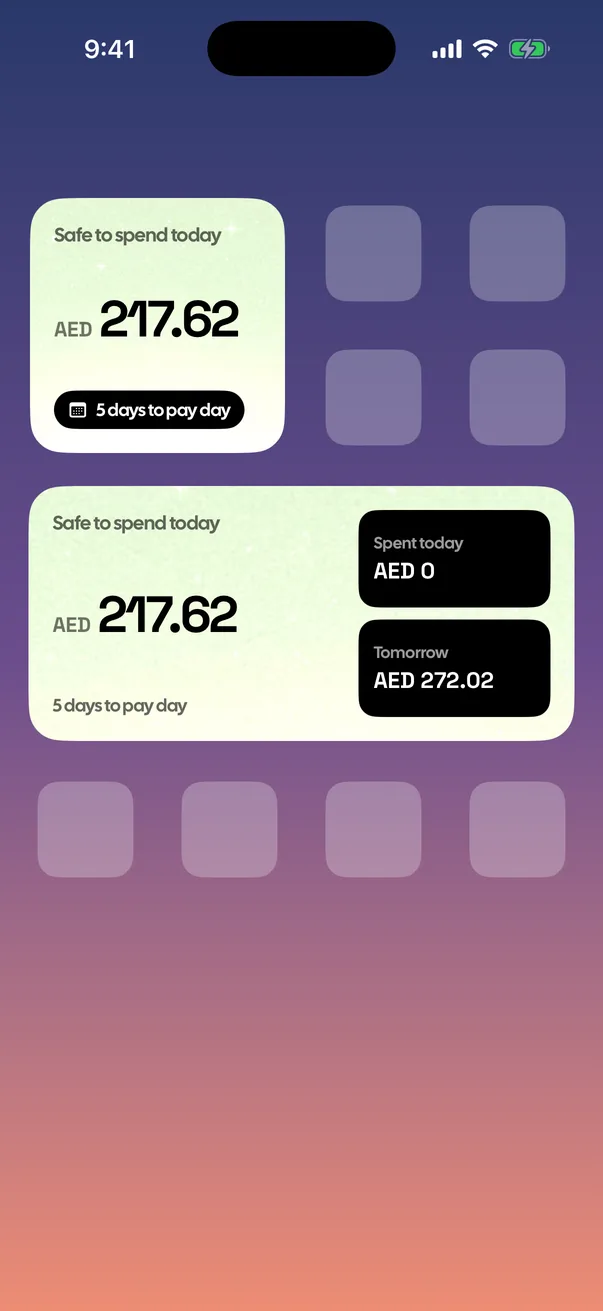
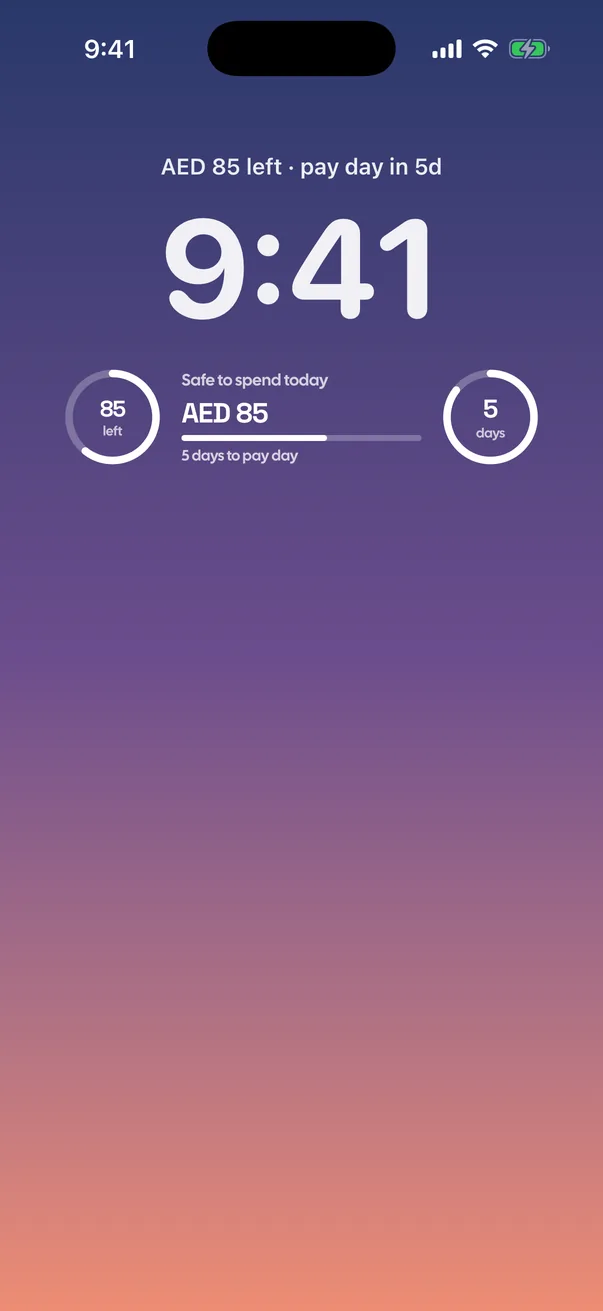
7Home Screen widgets
Small and medium sizes.
2Lock Screen widgets
Circular, rectangular and inline.
0taps to check
Your number is already on screen.
All nine widgets
| Widget | What it shows | Sizes |
|---|---|---|
| Safe to spend today | Today's limit and days to pay day | Small, medium |
| Bills coming up | Your next bills, and what's late or due today | Medium |
| Pay day countdown | Days left until pay day | Small |
| Rent | Your next rent payment | Small |
| This month | What you've spent this month, by category | Medium |
| Wallet mood | A little wallet that shows how today is going | Small |
| Tiny receipt | Today's spending and your last three spends | Medium |
| Left today (Lock Screen) | What's left to spend today | Circular, rectangular, inline |
| Pay day (Lock Screen) | Days to pay day | Circular |
How to add a MoneyBook widget
- Touch and hold an empty part of your Home Screen until the apps jiggle.
- Tap Edit (or the + button), then Add Widget.
- Search for MoneyBook, pick a widget and size, and tap Add Widget.
For the Lock Screen, touch and hold the Lock Screen, tap Customize, choose the Lock Screen, tap the widget area and pick MoneyBook.
Private on the Lock Screen too
Widgets read the same numbers the app keeps on your iPhone. Nothing is fetched from a server to draw them.
Questions
Which iPhones support MoneyBook widgets?
Any iPhone that runs MoneyBook (iOS 17 or later) supports its Home Screen and Lock Screen widgets.
Does the widget update by itself?
Yes. Widgets show the same numbers as the app, updated as you log spending.

Track every expense in two taps.
FreeNo accountNo adsData stays on your iPhone